
QSEoW Configuration
Configuring Butler Sheet Icons for Qlik Sense Enterprise on Windows (QSEoW) requires certificate-based authentication and understanding of the on-premises environment specifics.
Prerequisites
Before configuring Butler Sheet Icons for QSEoW:
- Access to the Qlik Management Console (QMC)
- Permissions to export certificates from QMC
- API user account with appropriate permissions
- Web UI login credentials
- QSEoW server details (hostname, ports)
Certificate Setup
QSEoW uses certificate-based authentication for API access. You must export certificates from the QMC.
Exporting Certificates
- Open QMC: Navigate to your QSEoW server's QMC
- Go to Certificates: Navigate to "Certificates" section
- Export Certificate: Follow instructions on Qlik help site
- Extract Files: You need these files:
client.pem- Public certificateclient_key.pem- Private key
Certificate Placement
Place certificates in the default location:
your-working-directory/
├── butler-sheet-icons.exe
└── cert/
    ├── client.pem
    └── client_key.pem
Or specify custom paths:
butler-sheet-icons qseow create-sheet-thumbnails \
  --certfile /path/to/client.pem \
  --certkeyfile /path/to/client_key.pem
Certificate Security
Keep certificates secure and never commit them to source control. Use appropriate file permissions to restrict access.
Authentication Configuration
API Authentication
Use by BSI when accessing the QSEoW APIs. These can actually be anything as certificates will be used for the actual authentication, but it is recommended to use one of the standard Sense internal accounts, for example Internal\sa_api.
--apiuserdir Internal        # User directory to use when connecting to Sense APIs (usually 'Internal')
--apiuserid sa_api           # User ID to use when connecting to Sense APIs
Web UI Authentication
Used by BSI when logging in via QSEoW's web interface:
--logonuserdir MYCOMPANYDIR     # User directory for web login. Often the same as the Active Directory (AD) domain.
--logonuserid your-username # Your web login username
--logonpwd your-password    # Your web login password
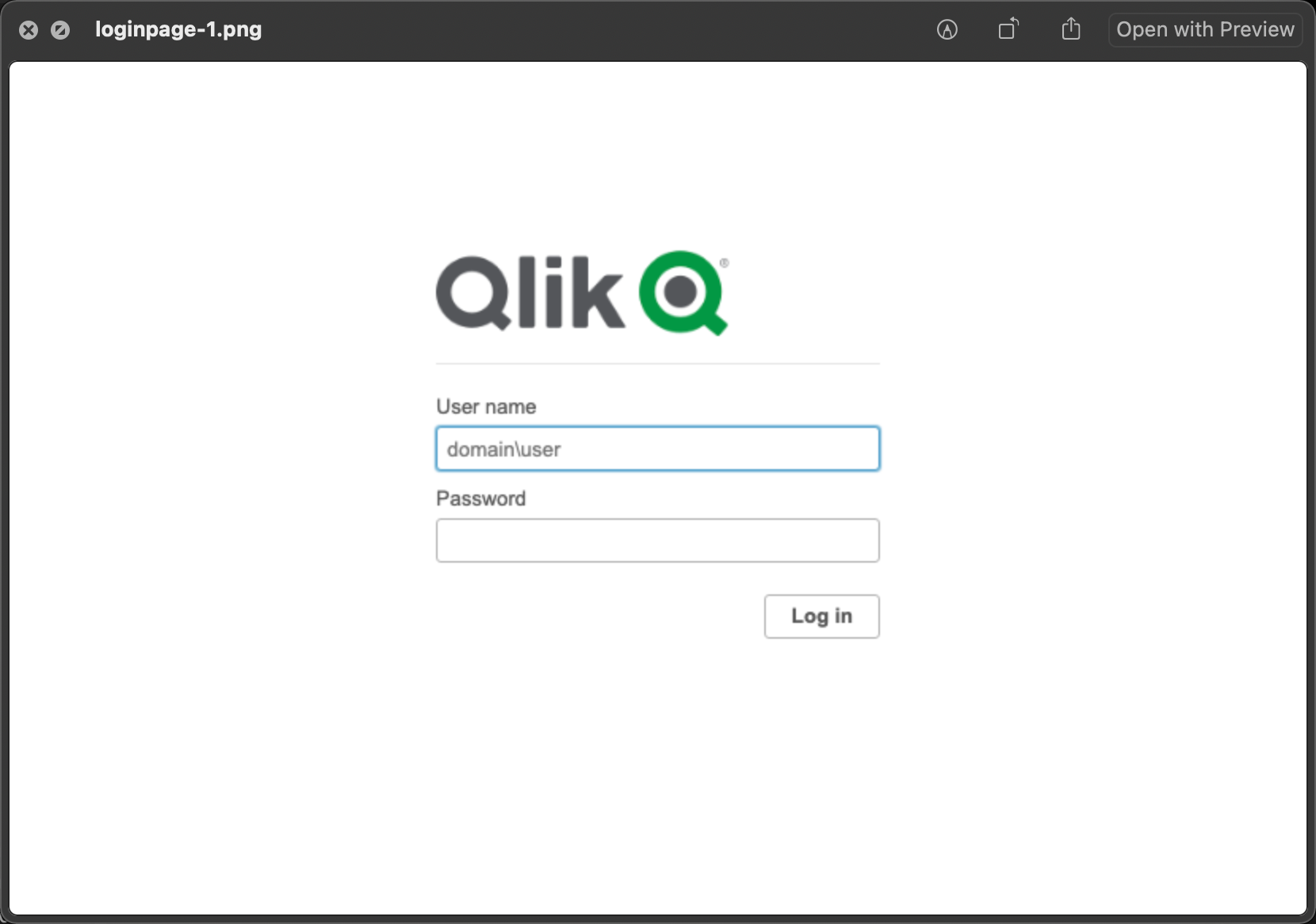
When Butler Sheet Icons connects to QSEoW using form-based authentication, you'll see a login page like this (if --headless false):
Virtual Proxy Configuration
Form-Based Authentication
When running Butler Sheet Icons on Windows form-based authentication must be used, otherwise the browser will default to Windows authentication.
Adding the following option will tell BSI to use a virtual proxy called "form", which must exist in Sense and be configured as such.
--prefix form # Use virtual proxy with form authenticationWhen using Butler Sheet Icons on operating systems other than Windows (that do not default to Windows authentication), you can leave out the --prefix form option.
Setting Up Form Virtual Proxy
If you don't have a form-based virtual proxy:
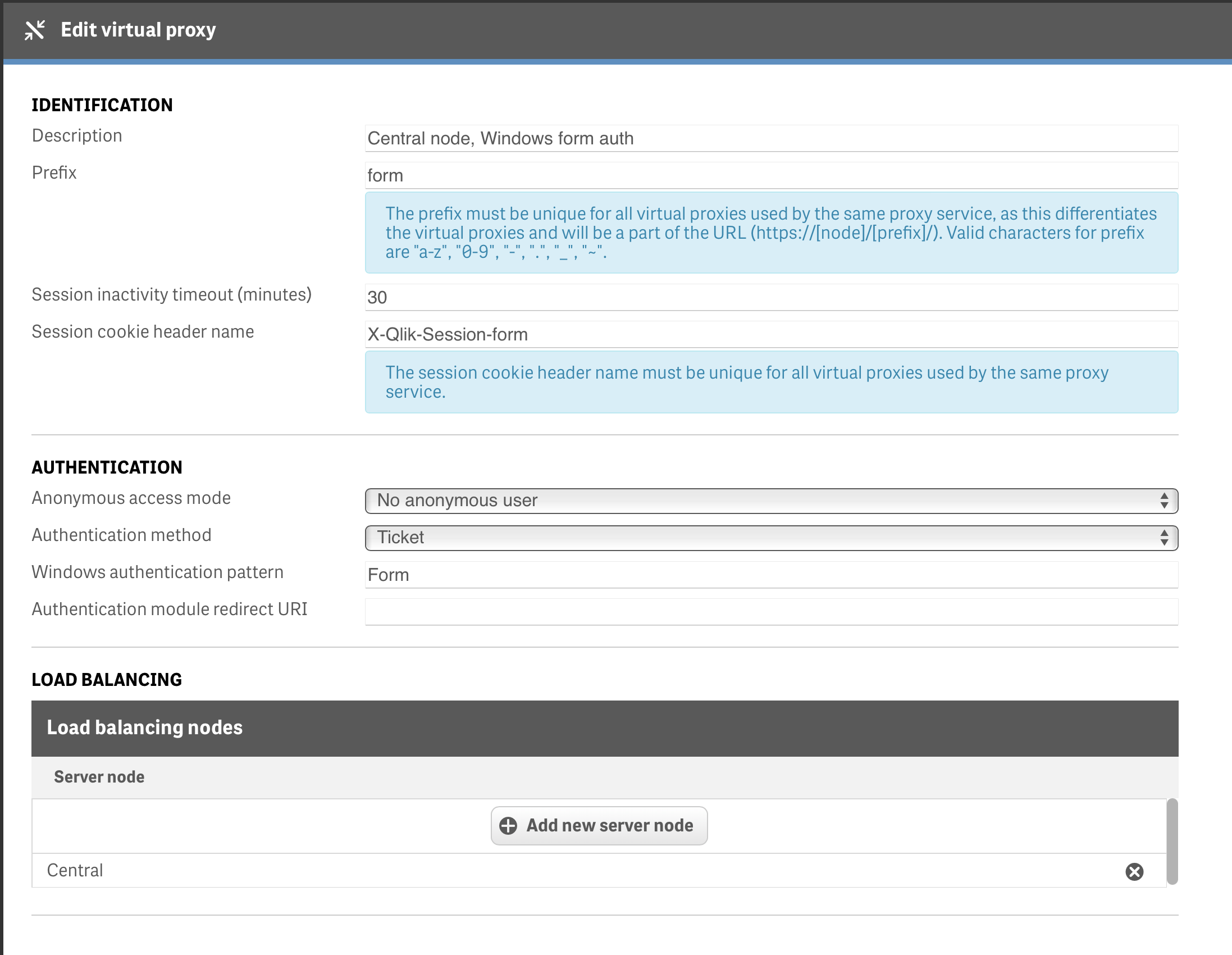
Create Virtual Proxy in QMC:
- Prefix:
form - Description:
Form-based authentication for tools - Session cookie header name:
X-Qlik-Session-form
- Prefix:
Authentication Configuration:
- Authentication method:
Ticket - Windows authentication pattern:
Form - Anonymous access mode:
No anonymous user
- Authentication method:
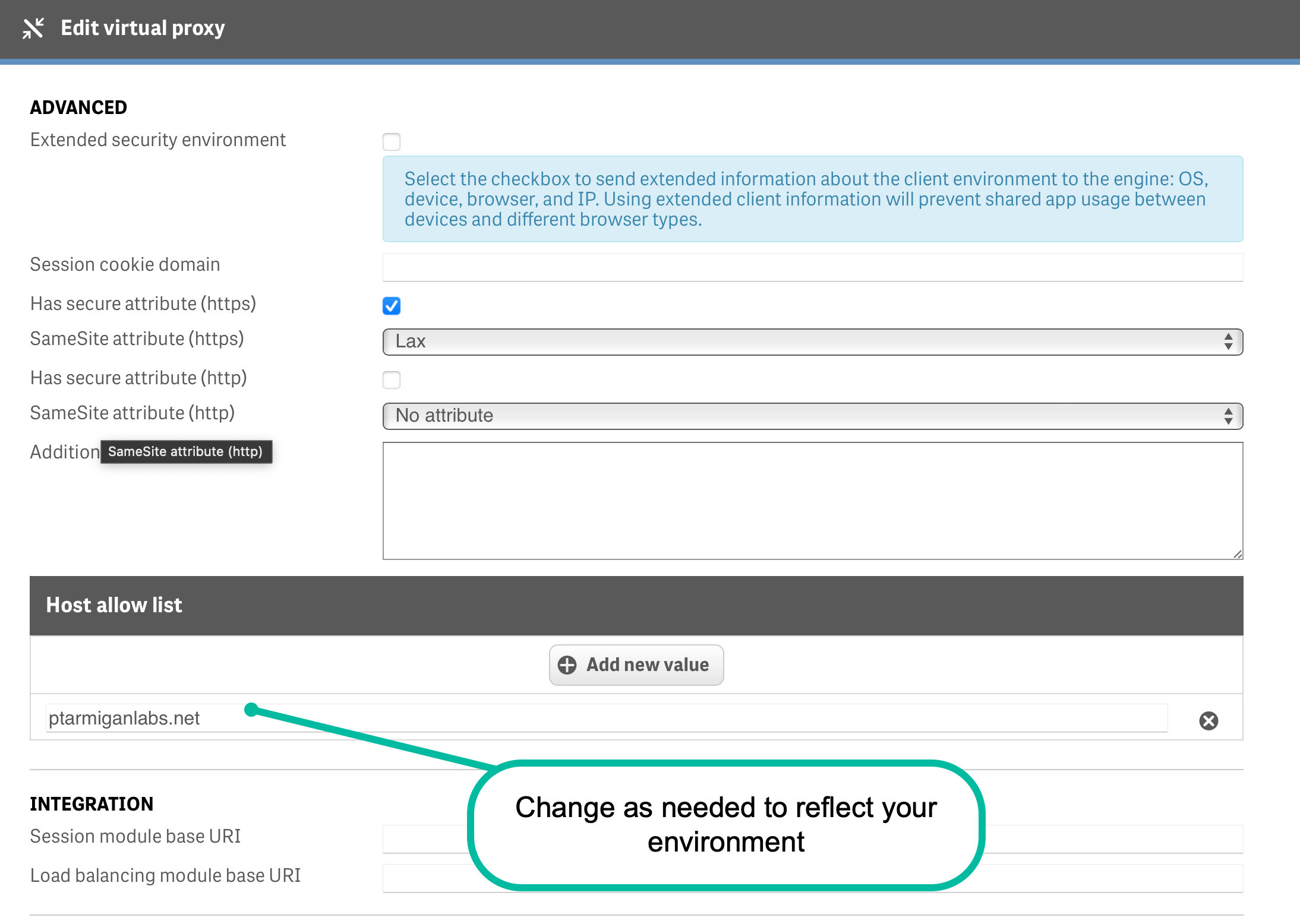
Advanced Settings:
- Websocket cross origin whitelist:
*(for development) - Additional response headers: (none needed)
- Websocket cross origin whitelist:
Here's how the virtual proxy configuration should look:
Server Connection Details
Basic Connection
--host qlik-server.company.com    # QSEoW server hostname
--secure true                     # Use HTTPS (recommended)
--port 443                        # HTTPS port (default)
Custom Ports
If using non-standard ports:
--qrsport 4242                    # QRS (Repository Service) port
--engineport 4747                 # Engine port
--port 8443                       # Custom web port
SSL/TLS Configuration
For development/testing environments:
--rejectUnauthorized false # Accept self-signed certificatesQSEoW Version Specification
Critical: You must specify your QSEoW version for compatibility:
--sense-version 2024-Nov # Use the version used in your Qlik Sense environmentFor a list of supported QSEoW versions and the exact values to use with --sense-version, see Supported Versions → QSEoW.
Version Compatibility
Using the wrong version parameter may cause login or navigation failures. Always specify the correct version for your QSEoW installation.
Command alias
You can use either create-sheet-thumbnails or create-sheet-icons with QSEoW — they are equivalent.
Content Library Setup
Butler Sheet Icons uploads images to a QSEoW content library.
Default Library
By default, BSI uses a library called "Butler sheet thumbnails":
--contentlibrary "Butler sheet thumbnails"Creating the Content Library
The content library must exist before running Butler Sheet Icons!
- Open QMC: Navigate to Content Libraries
- Create New: Click "Create new"
- Configure:
- Name:
My Custom Library
- Name:
Custom Content Library
To use a different library:
--contentlibrary "My Custom Library"App Selection Methods
Single App Update
--appid a3e0f5d2-000a-464f-998d-33d333b175d7Tag-Based Updates
Update all apps with a specific tag:
--qliksensetag "updateSheetThumbnails"To set up tag-based updates:
Create Tag in QMC:
- Name:
updateSheetThumbnails - Description:
Apps that should get updated sheet icons
- Name:
Tag Apps: Apply the tag to target apps
Run BSI: Use the
--qliksensetag updateSheetThumbnailsoption
Complete Configuration Example
Environment Variables
# Server details
export BSI_QSEOW_CST_HOST="qlik-server.company.com"
export BSI_QSEOW_CST_SECURE="true"
export BSI_QSEOW_CST_PREFIX="form"

# Authentication
export BSI_QSEOW_CST_API_USER_DIR="Internal"
export BSI_QSEOW_CST_API_USER_ID="sa_api"
export BSI_QSEOW_CST_LOGON_USER_DIR="Internal"
export BSI_QSEOW_CST_LOGON_USER_ID="your-username"
export BSI_QSEOW_CST_LOGON_PWD="your-password"

# App selection
export BSI_QSEOW_CST_APP_ID="a3e0f5d2-000a-464f-998d-33d333b175d7"
export BSI_QSEOW_CST_QLIKSENSE_TAG="updateSheetThumbnails"

# Configuration
export BSI_QSEOW_CST_CONTENT_LIBRARY="Butler sheet thumbnails"
export BSI_QSEOW_CST_SENSE_VERSION="2024-Nov"
Command Execution
Minimal command with environment variables
butler-sheet-icons qseow create-sheet-thumbnailsbutler-sheet-icons qseow create-sheet-thumbnailsFull command example
butler-sheet-icons qseow create-sheet-thumbnails \
  --host qlik-server.company.com \
  --appid a3e0f5d2-000a-464f-998d-33d333b175d7 \
  --apiuserdir Internal \
  --apiuserid sa_api \
  --logonuserdir Internal \
  --logonuserid your-username \
  --logonpwd your-password \
  --prefix form \
  --contentlibrary "Butler sheet thumbnails" \
   --sense-version 2024-Nov \
  --pagewait 5 \
  --includesheetpart 2 \
--headless truebutler-sheet-icons qseow create-sheet-thumbnails `
--host qlik-server.company.com `
--appid a3e0f5d2-000a-464f-998d-33d333b175d7 `
--apiuserdir Internal `
--apiuserid sa_api `
--logonuserdir Internal `
--logonuserid your-username `
--logonpwd your-password `
--prefix form `
--contentlibrary "Butler sheet thumbnails" `
--sense-version 2024-Nov `
--pagewait 5 `
--includesheetpart 2 `
--headless trueAdvanced Configuration
Sheet Filtering
# Exclude sheets by various criteria
--exclude-sheet-number 1 2
--exclude-sheet-title "Intro" "Help" "About"
--exclude-sheet-status private
--exclude-sheet-tag "excludeFromThumbnails"

# Blur sensitive sheets
--blur-sheet-number 3 5
--blur-sheet-title "Financial Data" "HR Dashboard"
--blur-sheet-tag "containsSensitiveData"
--blur-factor 8
Status-based exclusion in QSEoW
BSI can update icons for Public, Published, and Private sheets in both published and unpublished apps. Use --exclude-sheet-status only when you intentionally want to skip certain statuses (for example, leave private development sheets unchanged).
Image Options
# Custom screenshot settings
--imagedir ./screenshots
--includesheetpart 2          # Include sheet title
--pagewait 7                  # Wait longer for complex sheets
Browser Configuration
# Browser selection
--browser chrome              # chrome is the only accepted value
--browser-version recommended # or stable, a channel, or an exact build
--headless false              # Show browser for debugging
Logging
# Detailed logging
--loglevel debug              # or info, warn, error
Security Considerations
Network Security
- Ensure proper firewall rules for QRS (4242) and Engine (4747) ports
- Use HTTPS in production environments
- Consider VPN access for remote BSI execution
Certificate Management
- Store certificates securely
- Rotate certificates according to your security policy
- Use service accounts with minimal required permissions
User Account Security
- Use dedicated service accounts for API access
- Apply principle of least privilege
- Consider using environment variables for credentials
Troubleshooting
Common Issues
Certificate Errors:
- Verify certificates are correctly exported and placed
- Check file permissions on certificate files
- Ensure certificates haven't expired
Authentication Failures:
- Verify user credentials and directories
- Check virtual proxy configuration
- Ensure service account has necessary permissions
Version Compatibility:
- Always specify correct
--sense-version - Check QSEoW version in QMC → About
- Update BSI if using newer QSEoW version
Content Library Issues:
- Ensure library exists before running BSI
- Verify write permissions for API user
- Check library path accessibility
Debug Mode
For troubleshooting, run with detailed logging:
butler-sheet-icons qseow create-sheet-thumbnails \
  --loglevel debug \
  --headless false \
  --pagewait 10