
Qlik Sense Cloud Configuration
To use Butler Sheet Icons with Qlik Sense Cloud, you'll need to set up API authentication and understand the cloud-specific features.
Prerequisites
Before configuring Butler Sheet Icons for QS Cloud, ensure you have:
- Access to a Qlik Sense Cloud tenant
- Permissions to create API keys in your tenant
- User credentials for logging into the web interface
- App IDs or collection IDs for the apps you want to update
API Key Setup
Butler Sheet Icons uses API keys to access QS Cloud APIs for app information and image uploads.
Creating an API Key
Navigate to API Keys:
- Log into your Qlik Sense Cloud tenant
- Go to your profile menu → Settings. You should now be looking at your personal profile page
- Select "API Keys" from the sidebar
Generate New Key:
- Click "Generate new API key"
- Provide a descriptive name (e.g., "Butler Sheet Icons")
- Set appropriate expiration timeframe
- Copy the generated key immediately (you won't see it again!)
Verify Permissions:
- Ensure your user account has access to the apps you want to update
- For published apps, you can only update private sheet icons
API Key Security
Store your API key securely using environment variables or secure secret management tools. Never commit API keys to source code.
Using the API Key
You can provide the API key in several ways:
Command Line:
butler-sheet-icons qscloud create-sheet-icons --apikey your-api-key-hereEnvironment Variable (recommended):
export BSI_QSCLOUD_CST_APIKEY="your-api-key-here"
butler-sheet-icons qscloud create-sheet-icons
Login Credentials
Butler Sheet Icons needs web login credentials to access the Qlik Sense Cloud interface for taking screenshots.
Username/Password Method
For standard Qlik Sense Cloud accounts:
butler-sheet-icons qscloud create-sheet-icons \
  --logonuserid [email protected] \
  --logonpwd your-password
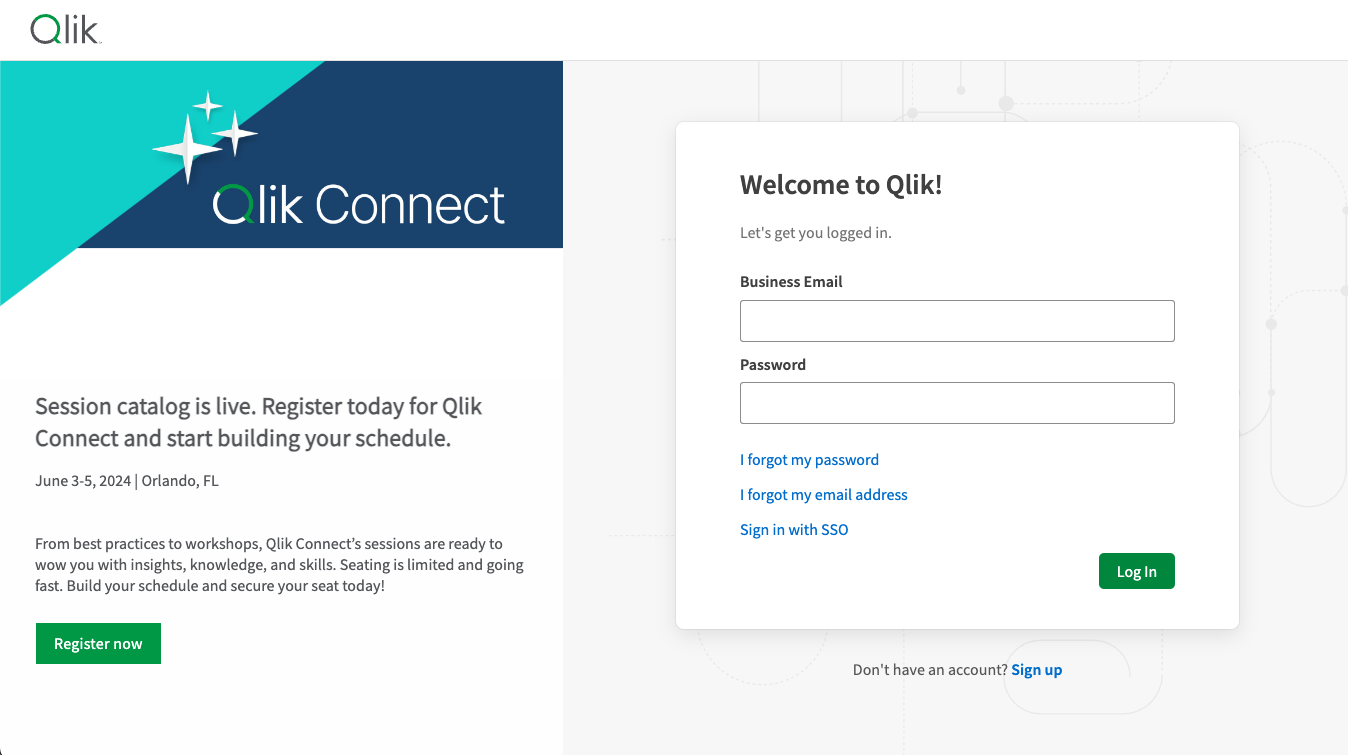
When Butler Sheet Icons connects to your QS Cloud tenant, you'll see a login page like this:
SSO Environments
If your organization uses Single Sign-On (SSO), you may need to use the --skip-login option:
butler-sheet-icons qscloud create-sheet-icons \
  --skip-login \
  --logonuserid [email protected]
SSO Compatibility
The --skip-login option is experimental and may not work with all SSO configurations. Test thoroughly in your environment.
Tenant Configuration
Tenant URL Format
When using Butler Sheet Icons, use the tenant URL as you see it in your browser when accessing Qlik Sense Cloud.
For example:
# Full URL with protocol
--tenanturl https://your-tenant.region.qlikcloud.com

# For example
--tenanturl mytenant.eu.qlikcloud.com
App Selection Methods
Using Environment Variables to provide default values
The examples below assume environment variables have been set for all required parameters.
Single App Update
Update a specific app using its ID:
butler-sheet-icons qscloud create-sheet-icons \
  --appid 12345678-1234-1234-1234-123456789012
Collection-Based Updates
Update all apps in a collection:
butler-sheet-icons qscloud create-sheet-icons \
  --collectionid your-collection-id
To find collection IDs in a specific tenant, use:
butler-sheet-icons qscloud list-collections \
  --tenanturl your-tenant \
  --apikey your-api-key
Complete Configuration Example
Here's a complete configuration example using environment variables:
Environment Variables
export BSI_QSCLOUD_CST_TENANTURL="mytenant.eu.qlikcloud.com"
export BSI_QSCLOUD_CST_APIKEY="eyJhbGciOiJFUzM4NCIsImtpZCI6..."
export BSI_QSCLOUD_CST_LOGON_USER_ID="[email protected]"
export BSI_QSCLOUD_CST_LOGON_PWD="your-password"

# Optional
export BSI_QSCLOUD_CST_APP_ID="12345678-1234-1234-1234-123456789012"
export BSI_QSCLOUD_CST_COLLECTION_ID="collection-uuid"
Command Execution
# With environment variables set, minimal command needed
butler-sheet-icons qscloud create-sheet-icons

# Or with specific options that will override their environment variable counterparts
butler-sheet-icons qscloud create-sheet-icons \
  --pagewait 7 \
  --includesheetpart 2 \
  --exclude-sheet-status published \
  --headless true
Advanced Options
Image Settings
# Custom image directory
--imagedir ./my-screenshots

# Include sheet titles in thumbnails
--includesheetpart 2

# Full screen capture
--includesheetpart 4
Sheet Filtering
# Exclude specific sheets
--exclude-sheet-number 1 2
--exclude-sheet-title "Welcome" "Help"
--exclude-sheet-status published public

# Blur sensitive sheets
--blur-sheet-number 3 5
--blur-sheet-title "Financial Data"
--blur-factor 8
Status-based exclusion in QS Cloud
In published apps, only private sheets can be updated by BSI. To avoid permission errors when processing published apps, exclude public and published sheets:
butler-sheet-icons qscloud create-sheet-icons \
--exclude-sheet-status public publishedbutler-sheet-icons qscloud create-sheet-icons `
--exclude-sheet-status public published:::
Browser Configuration
# Browser selection (chrome is the only accepted value)
--browser chrome

# Show browser (for debugging)
--headless false

# Longer page wait times
--pagewait 10
Troubleshooting
Common Issues
Login Failures:
- Verify credentials are correct
- Check if MFA is required (not currently supported)
- Try
--skip-loginfor SSO environments
API Key Issues:
- Ensure key hasn't expired
- Verify key has necessary permissions
- Check tenant URL is correct
Permission Errors:
- Use appropriate
--exclude-sheet-statusoptions - Verify your user has access to target apps
- Check app publication status
The general troubleshooting approach:
- Use
--headless falseto see the embedded browser that is used for login and app access. - Seeing what is shown in the browser usually helps in understanding what is causing the issue.
Debug Mode
Enable verbose logging for troubleshooting:
butler-sheet-icons qscloud create-sheet-icons \
  --loglevel debug \
  --headless false