
Sheet Blurring
Create blurred versions of sheet thumbnails to hide sensitive details while keeping overall layout context. Butler Sheet Icons (BSI) can blur selected sheets using flexible filters and a configurable blur intensity.
- Works with both Qlik Sense Cloud and Qlik Sense Enterprise on Windows (QSEoW).
- Blurred images are generated for all sheets and saved to disk alongside regular thumbnails. If a sheet matches any blur filter, its blurred image is set as the sheet icon.
When to use blurring
Consider blurring when:
- Thumbnails may reveal sensitive data (financials, PII, etc.).
- You want to visually differentiate public/published vs. private/development sheets.
- You need to obscure details but still show the general layout/structure.
What sheets to blur
Filters mirror the exclusion options but use the --blur-sheet-... prefix. You can combine multiple filters; they’re additive.
Available in QS Cloud and QSEoW:
--blur-sheet-number <numbers...>Blur by position in the app (1 = first sheet). Example:--blur-sheet-number 1 3 5. Sheet numbers come from the sheets' display order — see How sheet numbers are decided.--blur-sheet-title <titles...>Blur by exact sheet title. Titles with spaces must be quoted.--blur-sheet-status <status...>Blur by status. Valid values:public,published.
QSEoW only:
--blur-sheet-tag <value...>Blur sheets that have one or more specified tags (set in QMC > App objects). Tags don’t exist for individual sheets in QS Cloud.
Sheet numbers were matched incorrectly before BSI 4.0.0
In earlier versions --blur-sheet-number blurred sheets you had not selected — only the last number you listed was used, and it was matched as a text fragment rather than as a whole sheet number. --blur-sheet-number 12 also blurred sheets 1 and 2.
--blur-sheet-title, --blur-sheet-status and --blur-sheet-tag were not affected. See Listing several sheet numbers for the full description, and Sheets you did not select were skipped or blurred for what to check and re-run.
Blur intensity
Control blur strength with --blur-factor <factor>.
- Range: 1–100. 1 is the lightest blur, 100 the heaviest.
- Default: 5. Choose a value that balances privacy with recognizability.
Two things are worth knowing before you pick a value:
- A value above 100 is accepted but capped at 100.
--blur-factor 1000runs without an error or a warning and produces exactly the same image as--blur-factor 100. --blur-factor 0does not mean "no blur". Values below 1 are treated as 1, so the lightest blur you can ask for is 1. To leave a sheet unblurred, do not select it with any of the--blur-sheet-...filters.
A value that is not a non-negative whole number is rejected before Butler Sheet Icons connects to Qlik Sense:
error: option '--blur-factor <factor>' argument 'abc' is invalid. Blur factor must be a non-negative integer.Blur effect examples
The first row is the unmodified thumbnail, shown for comparison — it is not a --blur-factor value.
| Blur Factor | Result |
|---|---|
| Not blurred | 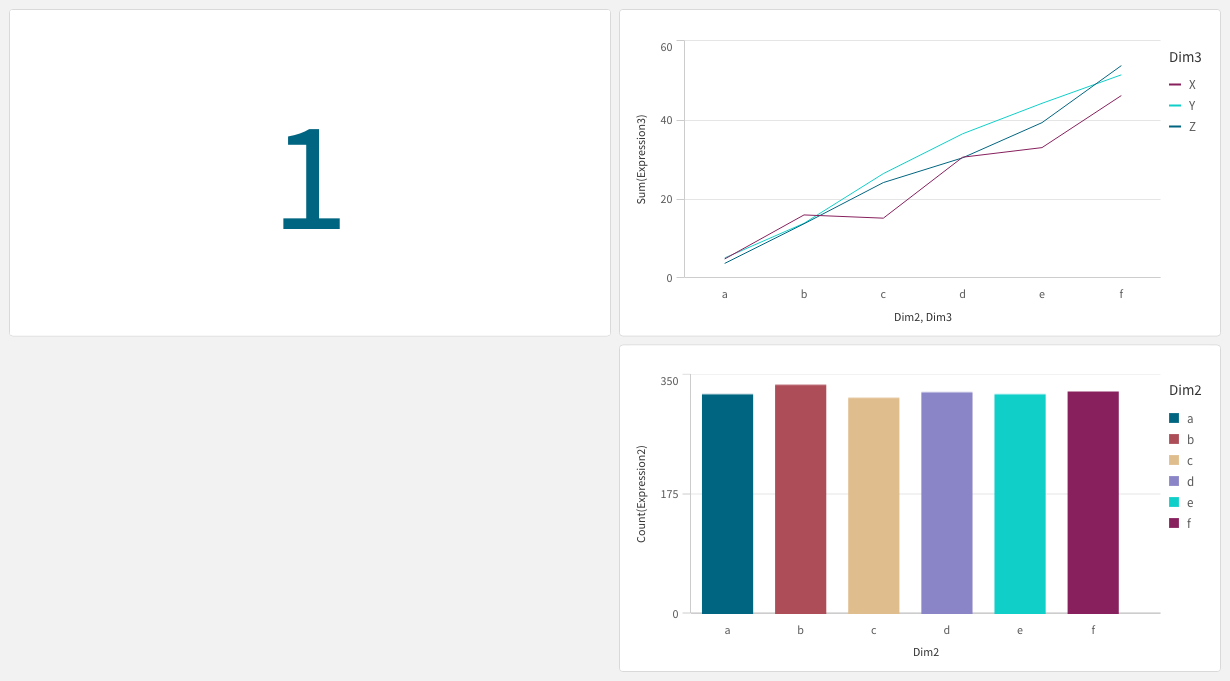 |
| 5 | 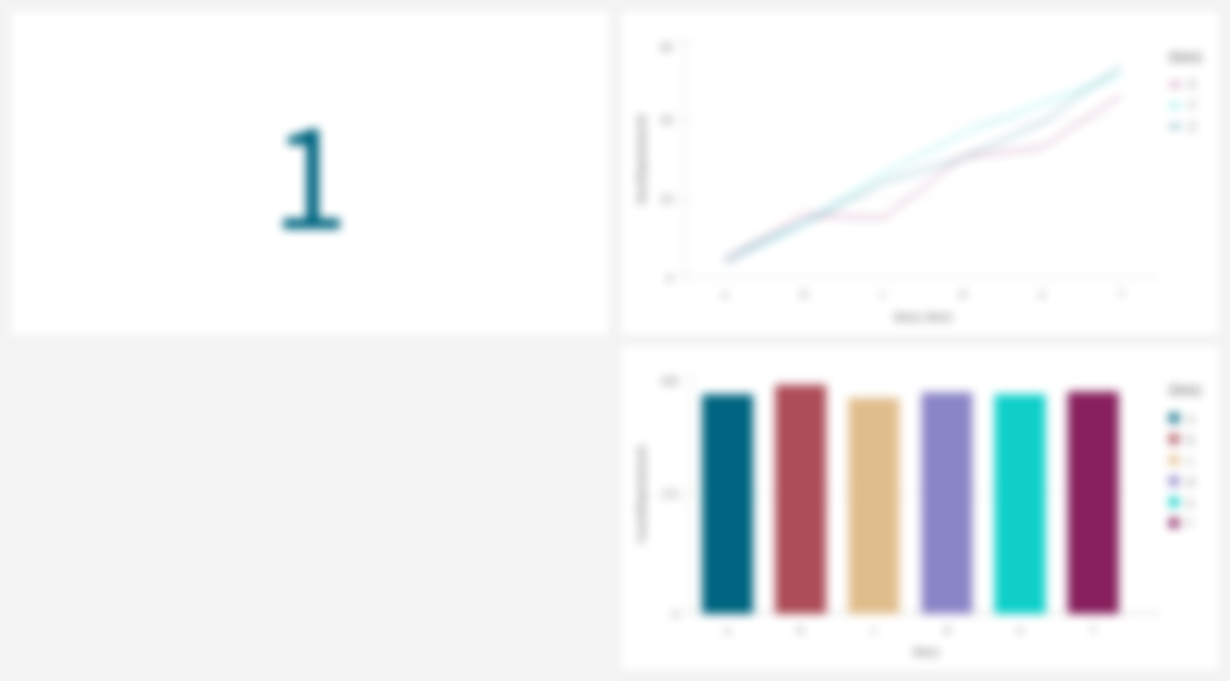 |
| 10 |  |
Examples
QSEoW (client-managed)
Blur specific sheets by number and title, and set a blur factor:
butler-sheet-icons qseow create-sheet-thumbnails \
  --host <server> \
  --appid <app-id> \
  --apiuserdir Internal \
  --apiuserid sa_api \
  --logonuserdir <dir> \
  --logonuserid <user> \
  --logonpwd <pwd> \
  --prefix form \
  --blur-sheet-number 2 4 \
  --blur-sheet-title "Financial Dashboard" \
  --blur-factor 5 \
--sense-version 2024-Maybutler-sheet-icons qseow create-sheet-thumbnails `
--host <server> `
--appid <app-id> `
--apiuserdir Internal `
--apiuserid sa_api `
--logonuserdir <dir> `
--logonuserid <user> `
--logonpwd <pwd> `
--prefix form `
--blur-sheet-number 2 4 `
--blur-sheet-title "Financial Dashboard" `
--blur-factor 5 `
--sense-version 2024-MayTip: Use tags in QSEoW to target sheets, then pass --blur-sheet-tag "🔒 Contains sensitive data".
QS Cloud
When updating a published app, you can blur all published (and/or public) sheets:
butler-sheet-icons qscloud create-sheet-thumbnails \
  --tenanturl <tenant> \
  --apikey <api-key> \
  --logonuserid <user> \
  --logonpwd <pwd> \
  --appid <app-id> \
  --blur-sheet-status published \
  --blur-sheet-number 1 \
--blur-factor 5butler-sheet-icons qscloud create-sheet-thumbnails `
--tenanturl <tenant> `
--apikey <api-key> `
--logonuserid <user> `
--logonpwd <pwd> `
--appid <app-id> `
--blur-sheet-status published `
--blur-sheet-number 1 `
--blur-factor 5Files on disk
- BSI captures screenshots and stores thumbnails per app and platform (Cloud/QSEoW).
- Blurred images are saved with a
-blurredsuffix next to the regular thumbnails.
Blurring by tag
Requires BSI 4.1.0 or later
--blur-sheet-tag was accepted on the command line long before it did anything. On client-managed Qlik Sense nothing ever asked Qlik Sense which sheets carried the tag, so no sheet was ever blurred because of it.
On client-managed Qlik Sense (QSEoW), --blur-sheet-tag now works: sheets carrying the named tag get a blurred thumbnail, exactly as with --blur-sheet-number, --blur-sheet-title or --blur-sheet-status.
If you are upgrading from 4.0.0, note that each run used to log this line:
--blur-sheet-tag is not yet implemented for QSEoW and will be ignored.That warning is gone. If you built a monitoring rule or a log filter matching it, the rule will stop firing — remove it.
Tagging is a Qlik Sense feature
Tags are applied to sheets in Qlik Sense itself, not in Butler Sheet Icons. Any sheet carrying the tag you name is blurred, which makes this the easiest filter to maintain when the set of sensitive sheets changes often — no command line has to be edited.
Related
- Sheet exclusion: See Sheet Exclusion for analogous exclude filters and status nuances.
- How it works: See How it works for an overview of screenshotting and when blurred images get applied.