
Quick Start
Here's what you need to get started quickly with Butler Sheet Icons.
Prerequisites
For Qlik Sense Cloud:
- Your Qlik Sense Cloud tenant URL
- An API key for Qlik Sense Cloud
- Your user ID and password for logging into the web UI
- The ID of the app you want to update
For Qlik Sense Enterprise on Windows (QSEoW):
- Access to the QMC to export certificates
- Your QSEoW server details
- API and login credentials
- The ID of the app you want to update
Quick Start for Qlik Sense Cloud
Download the binary for your platform (Windows, macOS, or Linux)
Create an API key as described in the Qlik documentation
Run Butler Sheet Icons with basic options:
./butler-sheet-icons qscloud create-sheet-icons \
  --tenanturl your-tenant.region.qlikcloud.com \
  --apikey your-api-key \
  --logonuserid your-user-id \
  --logonpwd your-password \
--appid your-app-id.\butler-sheet-icons.exe qscloud create-sheet-icons `
--tenanturl your-tenant.region.qlikcloud.com `
--apikey your-api-key `
--logonuserid your-user-id `
--logonpwd your-password `
--appid your-app-id- Sit back and enjoy not having to manually screenshot and process those sheet thumbnails! 🎉😎
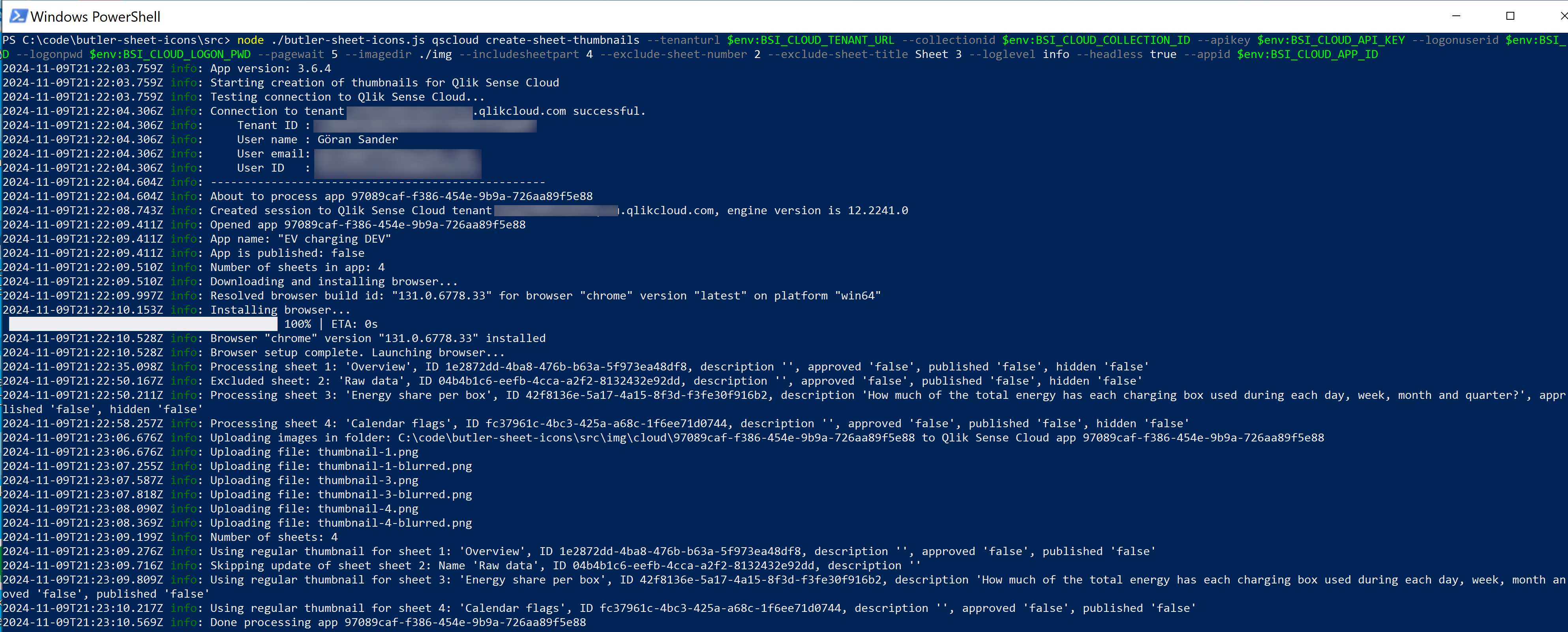
Example: QS Cloud Execution
Here's what it looks like when running Butler Sheet Icons for QS Cloud on Windows:
Quick Start for QSEoW
Download the binary for your platform
Export certificates from the QMC (instructions)
Place certificates in a
certdirectory relative to where you'll run the toolRun Butler Sheet Icons:
./butler-sheet-icons qseow create-sheet-thumbnails \
  --host qlik-server.company.com \
  --appid your-app-id \
  --apiuserdir Internal \
  --apiuserid sa_api \
  --logonuserdir Internal \
  --logonuserid your-user-id \
  --logonpwd your-password \
  --prefix form \
--sense-version 2024-Nov.\butler-sheet-icons.exe qseow create-sheet-thumbnails `
--host qlik-server.company.com `
--appid your-app-id `
--apiuserdir Internal `
--apiuserid sa_api `
--logonuserdir Internal `
--logonuserid your-user-id `
--logonpwd your-password `
--prefix form `
--sense-version 2024-NovNote about Windows Authentication
The --prefix form parameter tells Butler Sheet Icons to use a virtual proxy called "form", which is configured to use form-based authentication. This is required when running on Windows, as the default Windows authentication doesn't work with the embedded browser. The virtual proxy ("form" in this case) can be called anything as long as there is a matching virtual proxy - using form based authentication - configured in the Qlik Management Console (QMC).
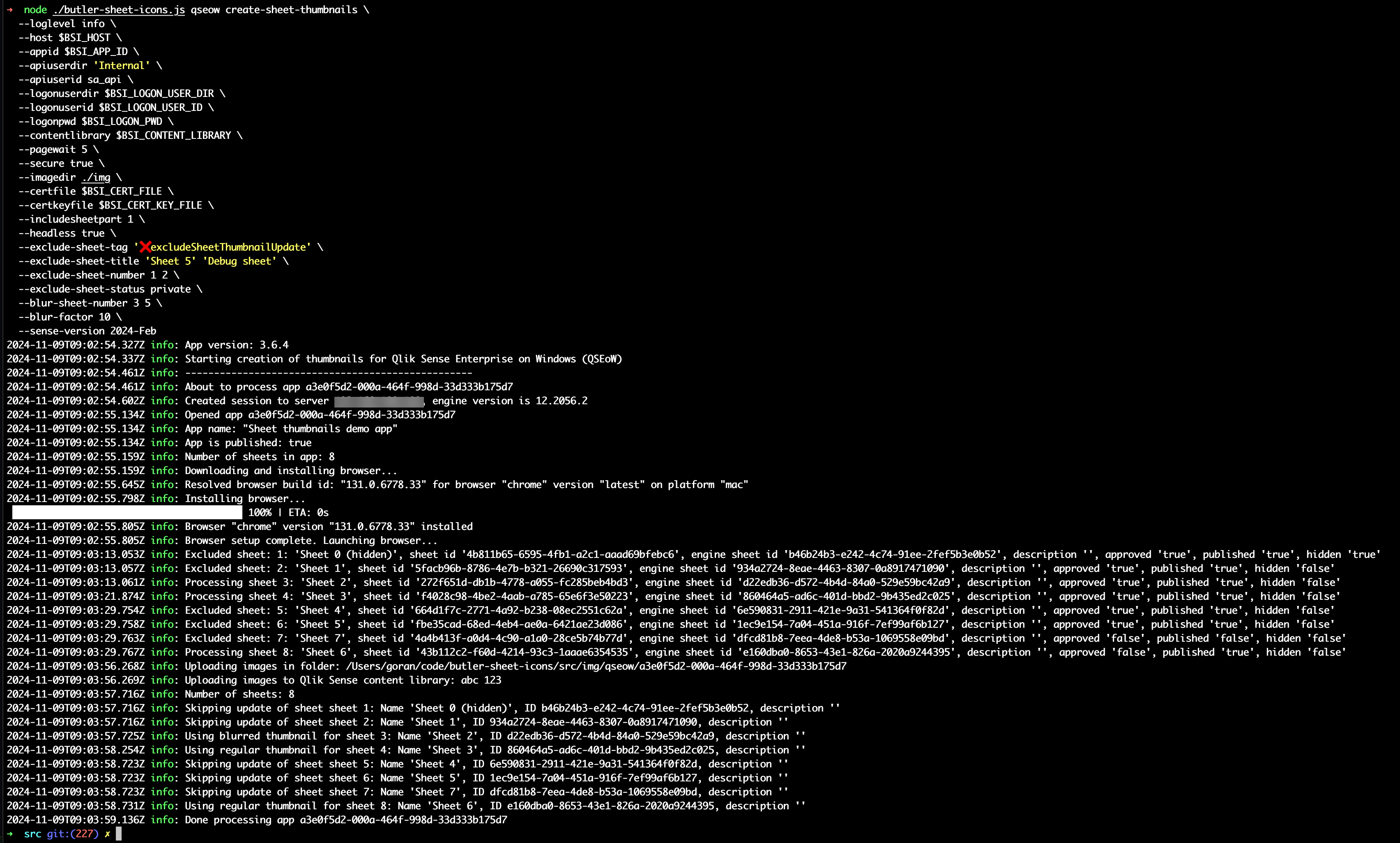
Example: QSEoW Execution
Here's Butler Sheet Icons running on macOS, connecting to a QSEoW server:
What Happens Next?
When you run Butler Sheet Icons, it will:
- Log into Qlik Sense using the embedded browser
- Navigate to each sheet in the specified app(s)
- Take screenshots of the sheet layouts
- Process and resize the images appropriately
- Upload the thumbnails to Qlik Sense
- Update the sheet icons automatically
You'll see progress updates in the console, and thumbnail images will be saved locally for your reference.
Next Steps
- Learn more about Installation options
- Explore Configuration for your environment
- Check out Examples for more complex scenarios
- Understand Core Concepts for advanced usage
Need Help?
- Check the Troubleshooting guide for common issues
- Visit the GitHub repository for documentation and support
- Contact Ptarmigan Labs for professional services